
FAQ
Cannot connect to device
Wi-Fi Mode
Check Firewall Settings
Windows Firewall may block inbound connections. Please follow these steps to manually allow the ports:
Press
Win+R, typepowershell, then holdCtrl+Shiftand click "OK" to run PowerShell as administrator.Enter the following commands:
powershellNew-NetFirewallRule -DisplayName "MicYou-6000-TCP" -Direction Inbound -LocalPort 6000 -Protocol TCP -Action Allow New-NetFirewallRule -DisplayName "MicYou-6001-UDP" -Direction Inbound -LocalPort 6001 -Protocol UDP -Action AllowMicYou uses TCP port
6000(control) and UDP port6001(audio data) by default. Change the port numbers if you have configured a different port.If no error appears, the operation was successful. Try connecting again.
Check if devices are on the same subnet
- Ensure the Android phone and PC are connected to the same Wi-Fi router.
- Ensure that AP Isolation or Network Device Isolation features are disabled in router settings (refer to your router's manual).
TIP
Advanced users can try using tools like Nmap or ping to check connectivity.
USB (ADB) Mode
Enable Developer Options
The steps below may vary depending on your device. Please use a search engine to find instructions for your specific device.
- Find "About phone" in phone settings, tap "Build number" 7 times to enable Developer Options.
- Enter Developer Options and enable USB debugging.
Confirm ADB connection
ADB tools must be installed on the computer (see Step 1: Download ADB above).
Run the following command to verify that one and only one device is connected:
bashadb devicesIf multiple devices are listed, specify the target device for port forwarding:
bashadb -s <device_serial_number> reverse tcp:6000 tcp:6000The device serial number can be found in the output of
adb devices.
No audio output after connecting
Windows
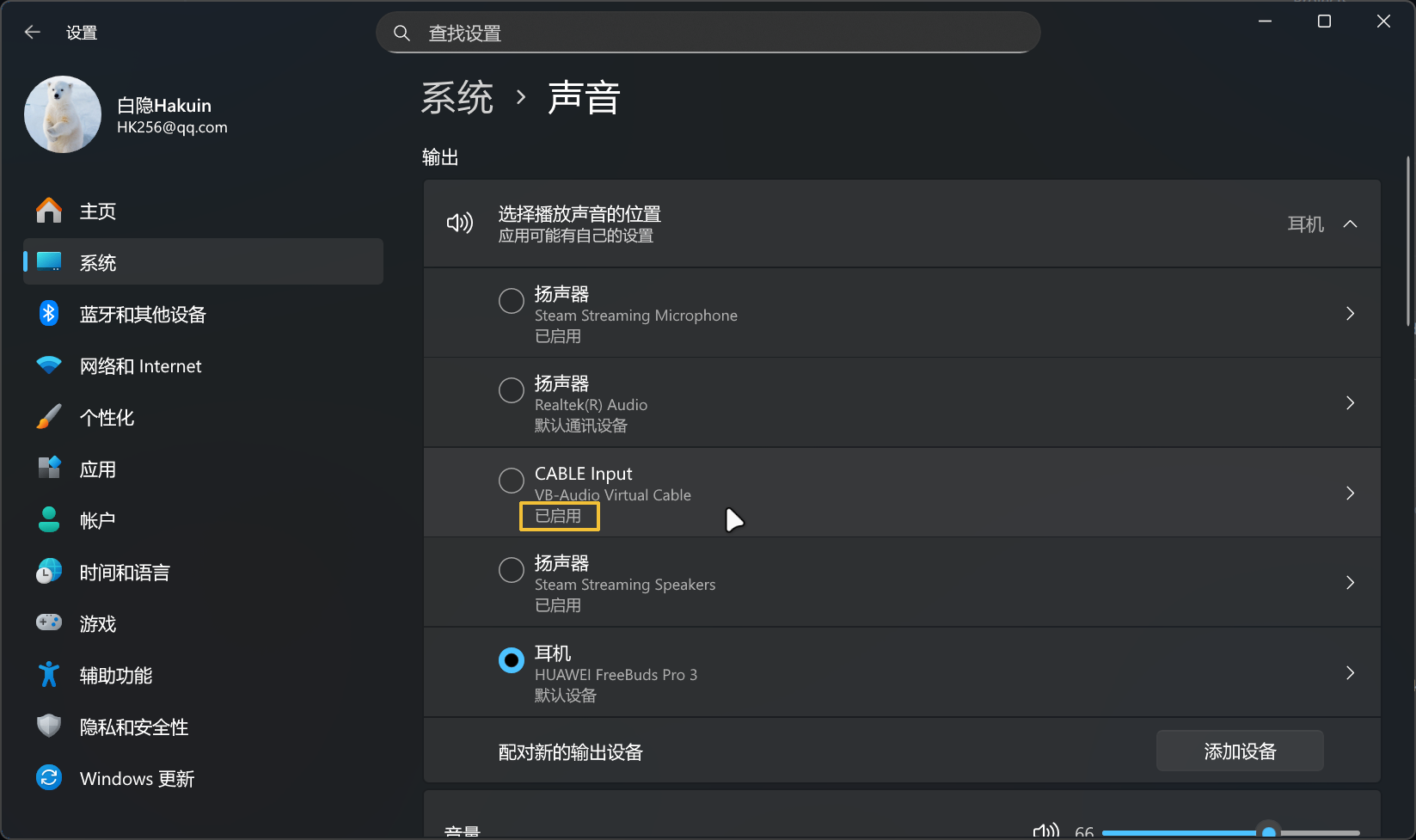
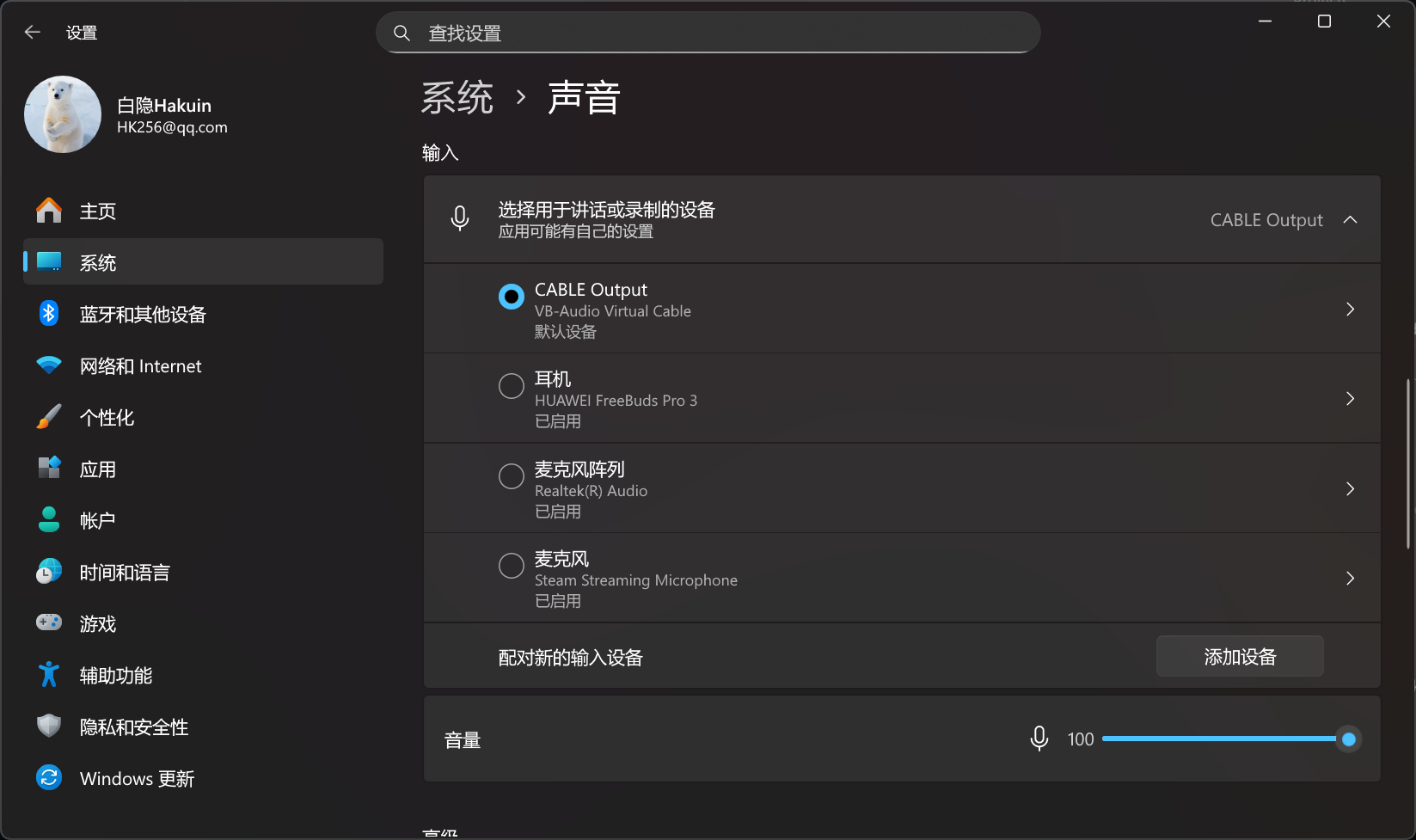
Please ensure that the VB-Audio driver is correctly installed and that the following devices are not disabled:
- Output Device: CABLE Input (VB-Audio Virtual Cable)
- Input Device: CABLE Output (VB-Audio Virtual Cable)
To check: Open Settings > Sound, and verify both devices are Enabled:
macOS
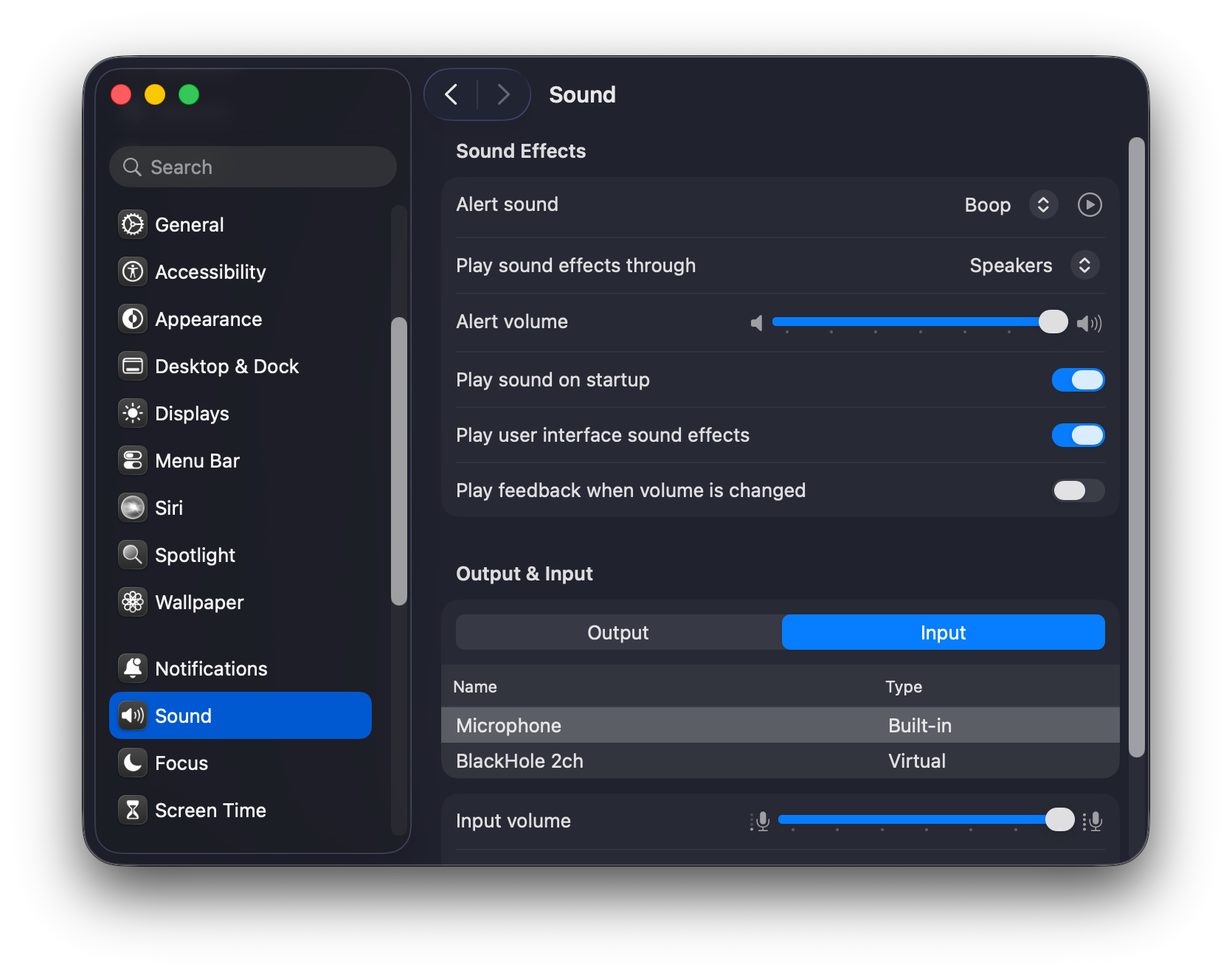
Please ensure that the BlackHole driver is properly installed!
If switchaudio-osx is not installed, you will need to manually change the input to BlackHole in “System Settings” / “System Preferences” > ‘Sound’ > “Input”.
Built-in microphone not working after exiting the app
macOS
If your Mac has a built-in microphone, the microphone settings will not revert to normal if you haven’t installed switchaudio-osx or if the app exits abnormally.
You need to manually change the setting in “System Settings” / “System Preferences” > ‘Sound’ > “Input” to your device's microphone.
For built-in microphones, they may be named “MacBook Pro Microphone,” “MacBook Air Microphone,” or similar names